How to Set Up cPanel Webmail Email or Branded Company Email with Outlook 365 in Windows: A Step-by-Step Guide
Email applications like Outlook are invaluable tools for managing multiple email addresses efficiently. They eliminate the need for constant sign-ins across various platforms, streamlining communication. This article will guide you through setting up your cPanel email account in Outlook for versions 2016, 2019, 2021, and Outlook 365.
Prerequisites
Before you begin, ensure you have the following:
- Your email account details
- Access to your cPanel via the WHMCS client area
- Outlook 2016, 2019, 2021, or Outlook 365 installed on your computer
Add cPanel Email or Company Domain Business Email with Outlook: A Step-by-Step Guide
cPanel allows you to add your mail server credentials to popular email clients such as Microsoft Outlook. This is a detailed guide to add your cPanel email to Microsoft Outlook on a Windows desktop.
Add a New Account
- In the ribbon of Outlook, in the ribbon click
File->Add Account.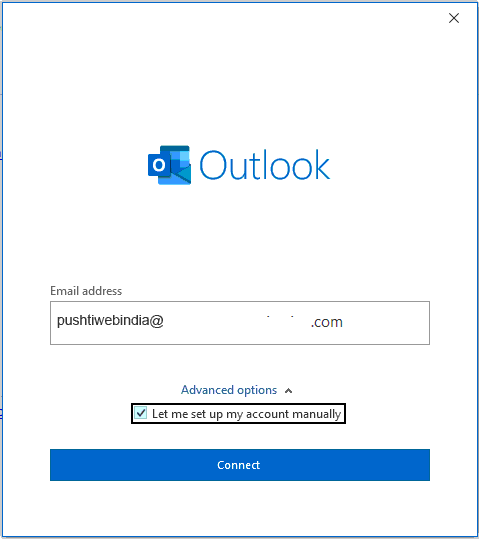
- Add your cPanel email such as service@yourdomain.com
- Check
Let me setup my account manually. ClickContinue. - For type, select IMAP
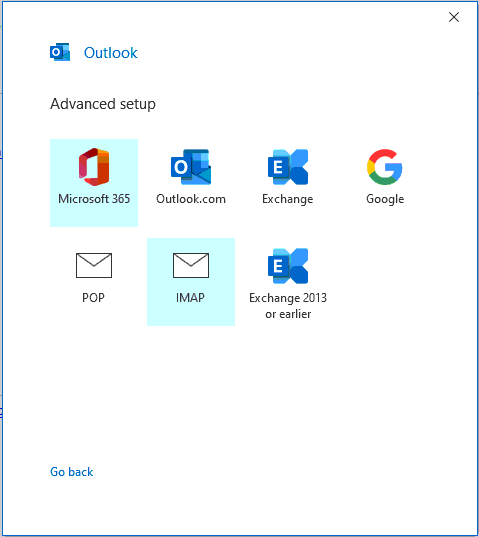
- You will be asked to enter a password. Enter the password associated with the email account specifically (not your general cPanel password)
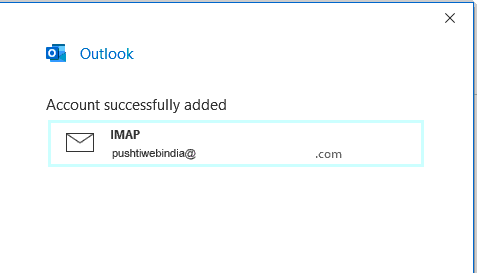
5. You will be prompted that your email has been setup properly along with an invitation to setup another email account. No further action is required to use your email in Outlook.
In some cases, Outlook will ask you to manually add your incoming server and outgoing SMTP server along with ports. If it does, enter the following information.
Incoming Mail Server:
server name: mail.yourdomain.tld Port 993
Outgoing SMTP Server:
server name: mail.yourdomain.tld Port 465


